Creating the Positive Pay extract file
Adapted from the Leahy Consulting client procedure "How to Create the Positive Pay Extract File", February 2010. Written for a customer running the extract from a Crystal report; folder paths and the report name will differ at your site.
With ordinary check processing, whoever presents a check at their bank has it cleared at yours, and there is very little standing between a forged check and your account. Positive Pay closes that gap: you send the bank an electronic file of the checks you actually wrote, and the bank verifies check number and amount against that file before clearing anything. Stolen and counterfeit checks are not in the file, so they do not clear — they are returned to the payee's bank.
The job has two steps, run after each check printing.
Step 1: Run the Crystal report
- Open Crystal Reports.
- Go to File → Open and open the folder holding your accounting reports —
at the site this procedure was written for,
X:\MACSQL\Crystal Reports\Accounting. - Select the report — Weekly AP Positive Pay — and click OK.
- Press F5 to run it. Crystal asks for the beginning and ending date range.
- Click OK to run the report.
- Check that the list of checks falls within the range you intended.
Step 2: Export the file
- From Crystal, go to File → Print → Export.
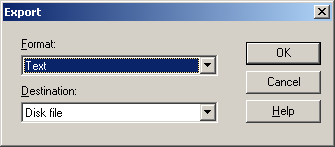
- Set Format to Text and Destination to Disk File.
- Save the file as
Weekly AP Positive Pay.txtin the same accounting folder.
Rename the file before it goes to the bank
Once saved, the file must be renamed to the name your bank specified. Use Windows Explorer. Banks match on the file name, and a file with the wrong name is not processed — which means the checks in it are not protected.
- Email the renamed file to your bank after each check printing.
Tip
A supported alternative. The Pulse Utilities Positive Pay extract reads the check file directly from Macola® and writes the file in your bank's format, so there is no Crystal report to maintain and no manual rename step to forget. It covers accounts payable and payroll checks. Call (513) 723-8091.
Support & contact
Our team is glad to help with anything from a quick question to a full implementation.
- PULSE software support — (513) 723-8095 · [email protected]
- Sales & product questions — (513) 723-8091 · [email protected]
- Consulting & Macola services — (513) 723-8094 · [email protected]