Reconciling A/P with the general ledger
Adapted from the Leahy Consulting white paper "How to reconcile Accounts Payable with the General Ledger" for Macola® V7, November 2004. We re-wrote and enhanced Macola®'s document on the subject to make it more readable.
Reconciling A/P is a short job when the two agree and a long one when they do not. The first section gets you to an answer in two reports. The rest of the page is for the months when the answer is no.
Step 1: Does A/P balance to the general ledger?
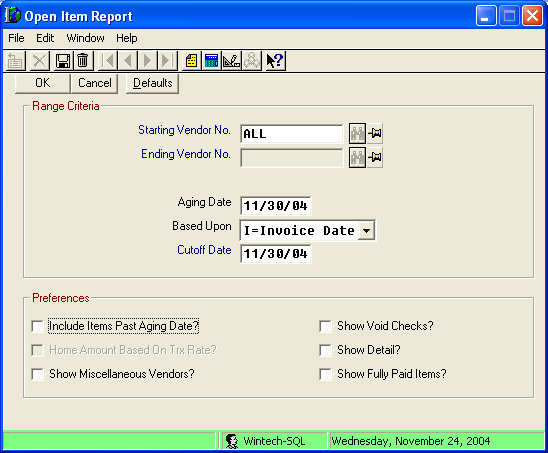
Print the A/P Open Item Report
The Open Item report is the only report that can be used for balancing. The A/P Aging report cannot, because it has no G/L cut-off date — see Open Item report versus Aging report.
Go to Accounts Payable → Reports/Graphs → Open Item Reports.
- Select all vendors
- Aging Date — the last day of the month
- Based upon — I=Invoice Date
- Cutoff Date — the last day of the month
- Include miscellaneous vendors and include void checks
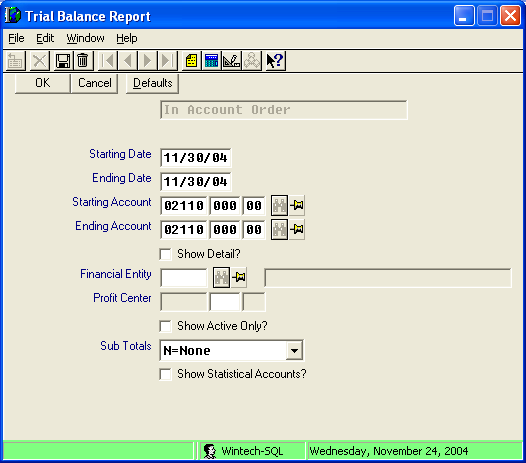
Print the G/L Trial Balance
Go to General Ledger → Reports/Graphs → Trial Balance.
- Use the same beginning and ending dates as above
- Select your accounts payable account or accounts
- Leave show detail? unticked
Compare the totals
If the two agree, you are done and the rest of this page is not needed.
How the two get out of step
Four kinds of activity cause it:
- Transactions posted after the Post from Subledger program was run
- Vouchers cancelled with a G/L distribution date outside the current period
- Checks voided with a void date outside the current period
- Transactions keyed through the A/P Open Item Load program
Step 2: Confirm the period balances
-
Get the beginning and ending G/L balances for the A/P account. Go to General Ledger → View → General Ledger Accounts, key the A/P account number and the beginning and ending dates of the period. The BB and Ending Balance fields show the two figures. Write them down.
-
Print the A/P Reconciliation report. Go to Accounts Payable → Reports/Graphs → A/P Reconciliation Rpt → By Account No. Key the A/P account number, select all vendors and all voucher numbers, key the beginning and ending dates, and tick Include New A/P Added?, Include A/P Paid? and Print Summary Distribution?.
-
Fill in the worksheet.
| Figure | |
|---|---|
| a. G/L beginning balance (step 1) | |
| b. Total of the New A/P (step 2) | |
| c. Total of the A/P Paid (step 2) | |
| d. Net change (a + b − c) | |
| e. G/L ending balance (step 1) |
If d equals e, you are in balance.
Step 3: When you are not in balance
Work through the five checks below, then fill in the second worksheet.
1. Print the A/P Open Item Report in detail
Go to Accounts Payable → Reports/Graphs → Open Item Reports. Select all vendors, use the ending date of the balancing period for both the aging date and the cut-off date, set based on to Invoice Date, and tick only Include items past aging date? and Show detail?.
2. Find transactions that were never posted to the G/L
Go to Accounts Payable → Reports/Graphs → Distribution to G/L. Use the date range of the balancing period, set Detail or summary? to Detail, and leave every check box clear.
Everything on this report has not been posted to the general ledger. Add the New A/P Added total to the A/P Paid total.
3. Find transactions added through the Open Item Load program
Open Item Load creates no G/L distributions at all
An item added this way appears on the open item report and never appears on the distribution report. It is assigned journal number APLOAD.
Run the Open Item History Report in journal order — Accounts Payable → Reports/graphs → Open Item History → By Journal Number — and look for transactions dated inside your balancing period. Anything you find has to be corrected with a manual journal entry.
4. Find cancellation vouchers dated outside the period
A cancellation voucher keyed with a distribution date beyond the end of the balancing period will not appear on the Open Item report, so the G/L ending balance includes the voucher's distribution but not the reversal. Key the cancellation on or before the period end and the two agree.
To find them, go to Accounts Payable → Reports/graphs → Distribution to G/L.
Set the starting date to the day after your period end and the ending date to
12312099 — key it exactly like that. Set Detail or summary? to Detail
and tick only Print transactions already interfaced to G/L?. Look for
cancellation vouchers with distribution dates outside the period.
5. Find checks voided outside the period
Behaviour depends on the version:
| Macola® version | What the Open Item report shows |
|---|---|
| Before 7.5.103 | Check payments are not shown where the check was voided in a future period |
| 7.5.103 and later | Check voids are shown only in the period in which the check was voided |
On a version before 7.5.103, review the Distribution to G/L report from check 2 for voided checks inside the balancing period.
6. Get the ending G/L balance
Go to General Ledger → View → General Ledger Accounts, key the A/P account and the period dates, and note the ending balance.
7. Fill in the worksheet
| Figure | |
|---|---|
| a. A/P Open Item Report grand total (check 1) | |
| b. Distributions not posted (check 2) | |
| c. Transactions entered through Open Item Load (check 3) | |
| d. Cancellation vouchers (check 4) | |
| e. Checks voided after the cut-off date (check 5) | |
| f. Net change (a ± b ± c + d − e) | |
| g. G/L ending balance (check 6) |
f should equal g.
Tip
If this is a monthly ritual. The Financial Control module of Pulse Dashboard shows A/P and A/R aging against the general ledger on screen, refreshed from live Macola® data, which turns the monthly hunt into a glance. Call (513) 723-8091 for a demonstration.
Support & contact
Our team is glad to help with anything from a quick question to a full implementation.
- PULSE software support — (513) 723-8095 · [email protected]
- Sales & product questions — (513) 723-8091 · [email protected]
- Consulting & Macola services — (513) 723-8094 · [email protected]