Posting Shop Floor Control transactions to the general ledger
Adapted from the Leahy Consulting white paper "Posting Shop Floor Control transactions to the general ledger", updated 9 April 2022.
Shop floor activity does not reach the general ledger on its own. Five steps do it, and four of them are daily or per-order rather than monthly. Skipping the posting step for a few days is the usual reason a month-end WIP balance looks nothing like the shop floor.
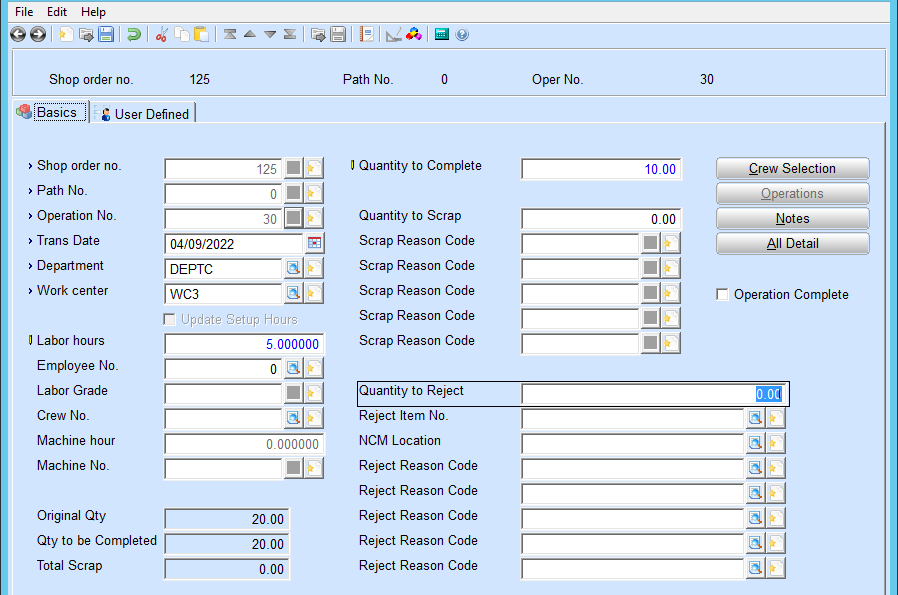
Step 1: Report production quantities and labor
Go to Mfg Execution → Shop Floor → Activity transactions.
Step 2: Close the shop order once all activity is reported
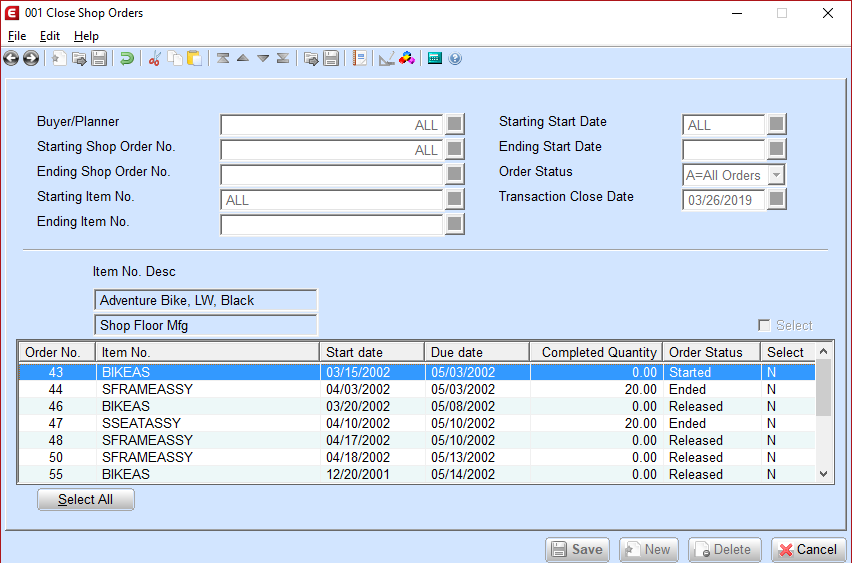
Review each shop order to confirm every labor and reported-quantity transaction has been entered, then close the order. Closing it removes the possibility of a transaction being applied to it in error.
Go to Mfg Execution → Shop Floor → Order Status Processing → Close Orders. Display all open orders and double-click the ones to complete — the Select column changes from N to Y as you do.
Step 3: Post transactions every day
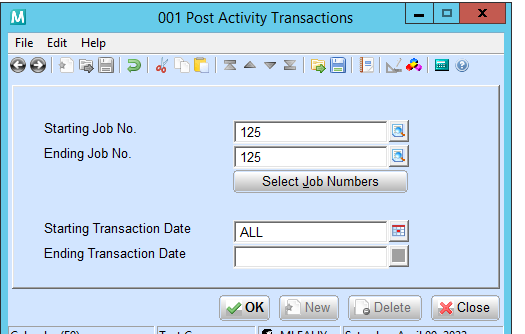
This screen posts material and labor transactions to the general ledger.
Go to Mfg Execution → Manufacturing Cost Accounting → Post transactions.
Step 4: Create and post standard costing variances
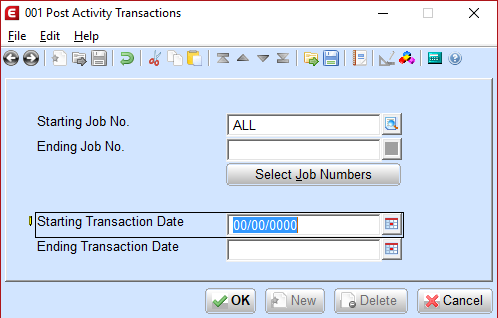
Only if you are using standard costing. This screen creates the general ledger variance transactions from material and labor.
Go to Mfg Execution → Manufacturing Cost Accounting → Create Std Variance Distributions. For Post, Print List or Both, select Both — you can post the transactions separately if you prefer.
Variances are only created for closed shop orders
An order left open produces no variance distributions at all, however complete it is. That is what makes step 2 part of the routine rather than housekeeping.
Step 5: Review the order in Pulse Dashboard
Once the shop order has been released, review it on the Pulse Dashboard Shop Order Detailed View. There are separate screens for in-process and completed orders, and separate screens for hours and dollar variances.
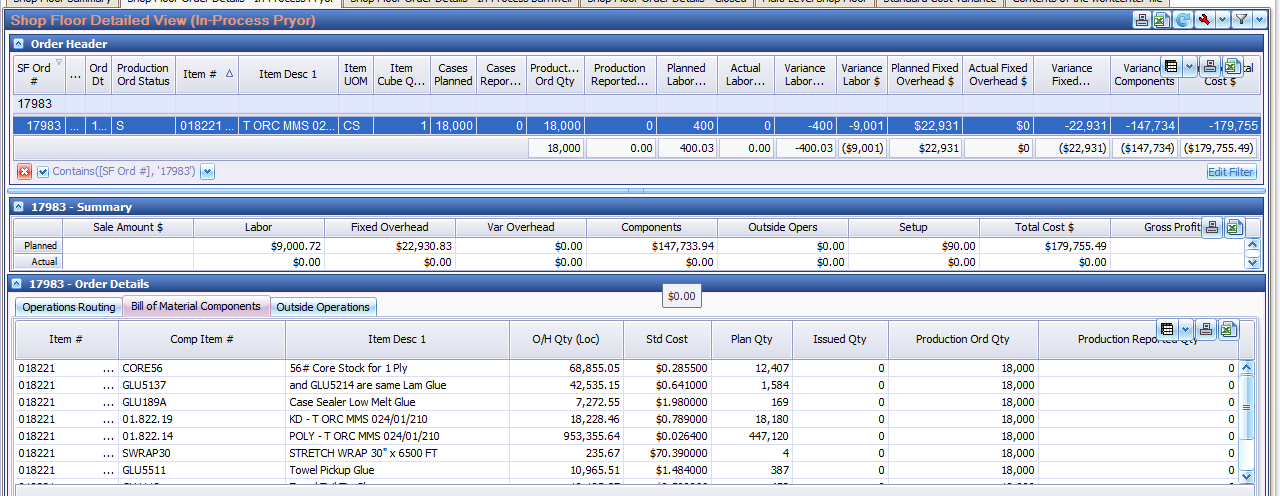

Verify that:
- the order has been released
- the planned quantity is correct
- the bill of material has been attached
- the correct routing has been attached, with the right department and work centers
- the planned labor hours are not zero
Zero planned labor hours usually means the order was created wrong
An order with no planned hours will report a variance equal to every hour booked against it. Fix the order rather than the variance.
The Production module of Pulse Dashboard carries these screens along with shop floor shortages, the 12-week schedule and order aging.
Support & contact
Our team is glad to help with anything from a quick question to a full implementation.
- PULSE software support — (513) 723-8095 · [email protected]
- Sales & product questions — (513) 723-8091 · [email protected]
- Consulting & Macola services — (513) 723-8094 · [email protected]